If you’ve stared at a “Save” dialog in Microsoft 365 and genuinely didn’t know whether to pick OneDrive or SharePoint, you’re not alone. Both store files in the cloud. Both sync to your desktop. Both are part of the same Microsoft 365 subscription. So why do both exist?
The answer comes down to ownership. OneDrive is your personal digital office. SharePoint is the organization’s shared library. Once that distinction clicks, every “where should I save this?” question resolves itself pretty quickly.
This guide covers how each platform works, breaks down the differences in a head-to-head comparison, and gives you a clear decision framework for where your next document should live.
On This Page
What Is SharePoint?
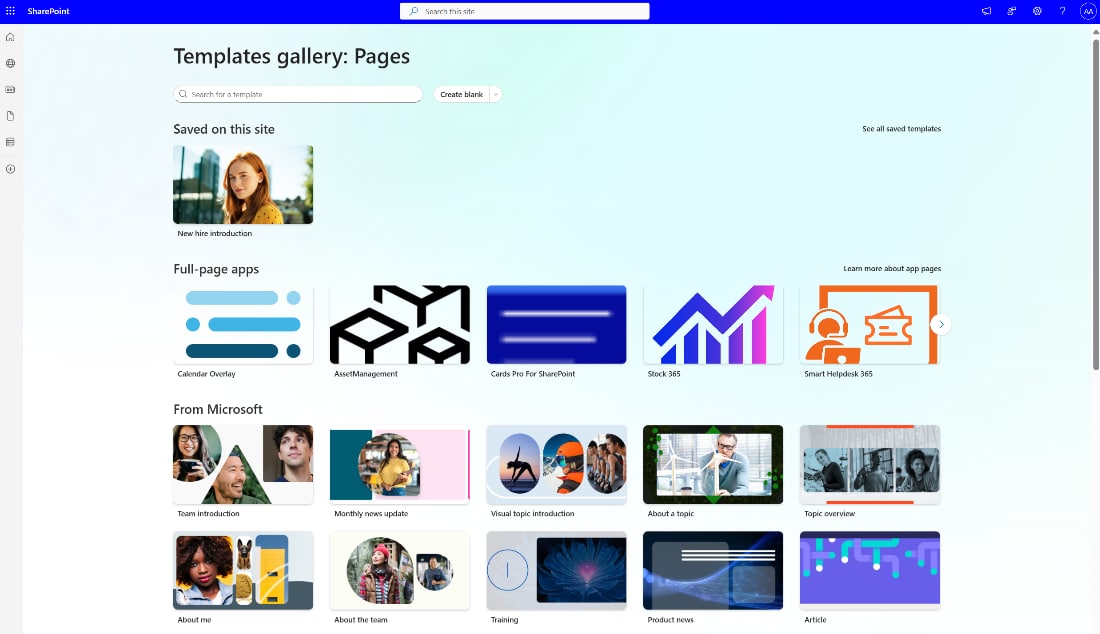
SharePoint is Microsoft’s platform for team collaboration, document management, and intranets. Where OneDrive is your desk, SharePoint is the shared filing room for the whole department. Files live inside “Sites,” and those Sites belong to the organization, not any individual.
I think of SharePoint as the destination for a document once it stops being a draft and starts being a record. An HR policy manual, a completed project brief, a resource library: these belong in SharePoint, not sitting in someone’s personal OneDrive where the rest of the team can’t reliably access them.
Key Features
- Document libraries: Structured storage with versioning built in. Every edit is logged, and you can restore any previous version without guesswork.
- Custom metadata: Instead of relying only on folders, you can tag files with custom columns like Department, Project, or Status. This makes large libraries far easier to search and filter, especially as your file count scales into the thousands.
- Automated workflows: Through Power Automate integration, SharePoint can trigger actions automatically. When a new contract lands in the library, it can notify the legal team, move to a review stage, and apply a retention label, all without a human touching it.
- Communication sites: SharePoint isn’t only for file storage. Teams use it to build internal portals, department hubs, and onboarding resources with news feeds, embedded documents, and directory pages.
Files Stay When People Leave
This is SharePoint’s biggest operational advantage. Because files belong to the Site, not the person, they persist indefinitely when team members come and go. There’s no frantic “transfer their files before we disable their account” scramble. The company’s institutional knowledge stays exactly where it is, accessible to whoever inherits the work.
Also read: How to run Windows 11 on your Mac
What Is OneDrive?
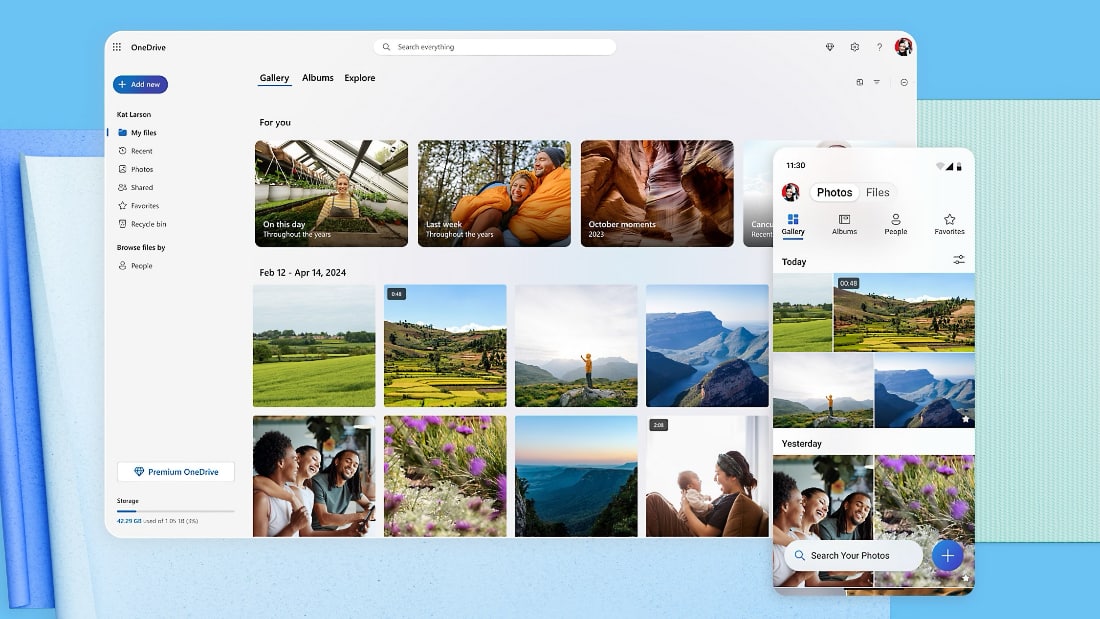
OneDrive is Microsoft’s personal cloud storage, designed for individual work. Think of it as your private desk drawer inside Microsoft 365. Everything you save there is yours by default and invisible to everyone else unless you explicitly share it.
I use OneDrive constantly for work-in-progress files: a memo I’m still drafting, a budget sheet I haven’t finalized, or a deck I’m not ready to share with the team. It’s the right place for anything that’s still mine.
Key Features
- Personal Vault: A protected area inside OneDrive that requires two-factor authentication to open. Useful for sensitive files like contracts or ID copies.
- Simple sharing: You share directly with a person or generate a link. It’s a one-to-one or one-to-few model, not a structured permission system. If you need to share large files with someone on OneDrive, there’s a straightforward way to do it without email size limits getting in the way.
- Desktop sync: The OneDrive client syncs your files to File Explorer (Windows) or Finder (Mac), so you can work offline.
- Mobile access: The OneDrive app on iOS and Android keeps your files accessible from anywhere.
The File Lifecycle Problem
Here’s something most people don’t think about until it’s too late.
If you leave the company, your OneDrive files don’t automatically transfer anywhere. Microsoft gives IT administrators a 30-day window after the account is deleted to access and reassign those files. After that, the OneDrive moves to the recycle bin for another 93 days before it’s permanently deleted.
That isn’t a flaw. It’s by design. OneDrive files belong to the person. That’s exactly the point.
SharePoint vs OneDrive: Side by Side
| Feature | OneDrive | SharePoint |
|---|---|---|
| Ownership | Individual user | Organization / Site |
| Visibility | Private by default | Shared by default |
| Permissions | Simple link sharing | Role-based access control |
| Storage | Per-user quota (1 TB typical) | Pooled organizational storage |
| Best for | Personal files, drafts, private notes | Team projects, official docs, and intranets. |
| File persistence | Expires when the user leaves | Persists regardless of team changes |
| Metadata support | Basic (name, date, type) | Full custom columns and tags |
| Workflow automation | Limited | Deep Power Automate integration |
| Version history | Yes, limited | Yes, full and configurable |
| Sync to desktop | Yes | Yes (with 300,000-item limit) |
The table makes the tradeoffs clear. OneDrive wins on simplicity. SharePoint wins on structure, governance, and long-term reliability.
Save It Here, Not There: A Simple Decision Guide
The “OneDrive or SharePoint?” question usually resolves quickly once you ask: Who does this file actually belong to?
Use OneDrive When:
You’re still drafting. A memo, a report, a presentation deck that isn’t done yet. Keep it in OneDrive until it’s ready for review.
You’re sharing with one person, once. If a colleague needs a file and you don’t expect ongoing collaboration, OneDrive sharing is fast and sufficient.
The file is genuinely personal. Notes from a meeting you’re attending solo, a personal to-do list, a CV you’re updating. These aren’t organizational assets and shouldn’t be treated as such.
Where should I save my personal meeting notes? OneDrive is the right call. You’re the owner, and nobody else needs access.
Use SharePoint When:
The file belongs to a team. If multiple people will edit, review, or rely on a document regularly, SharePoint gives them a permanent, shared home.
The document needs to be “official.” HR policies, financial reports, product specs, and onboarding documents. These need version control, defined access, and a home that doesn’t depend on one person’s account.
Where should I save our departmental budget? SharePoint, without question. It needs to belong to the finance team, not to whoever built the spreadsheet.
Compliance or retention matters. If a document has a legal hold, a retention period, or sensitivity classifications, SharePoint’s labels and retention policies handle that natively. OneDrive doesn’t.
The “Me to We” Flow
One of the most useful habits in Microsoft 365 is treating OneDrive as the starting line, not the finish line. Draft in OneDrive. Share it with one or two people for early feedback. Then move it to the relevant SharePoint Site once it’s ready for the team.
Microsoft makes this easy. In OneDrive, right-click any file and choose “Move to,” then select the SharePoint document library. The version history follows the file. Once it lands in SharePoint, it’s no longer a personal draft. It’s an organizational asset.
Also read: How to change the default search engine in Microsoft Edge
Better Together: The Role of Microsoft Teams
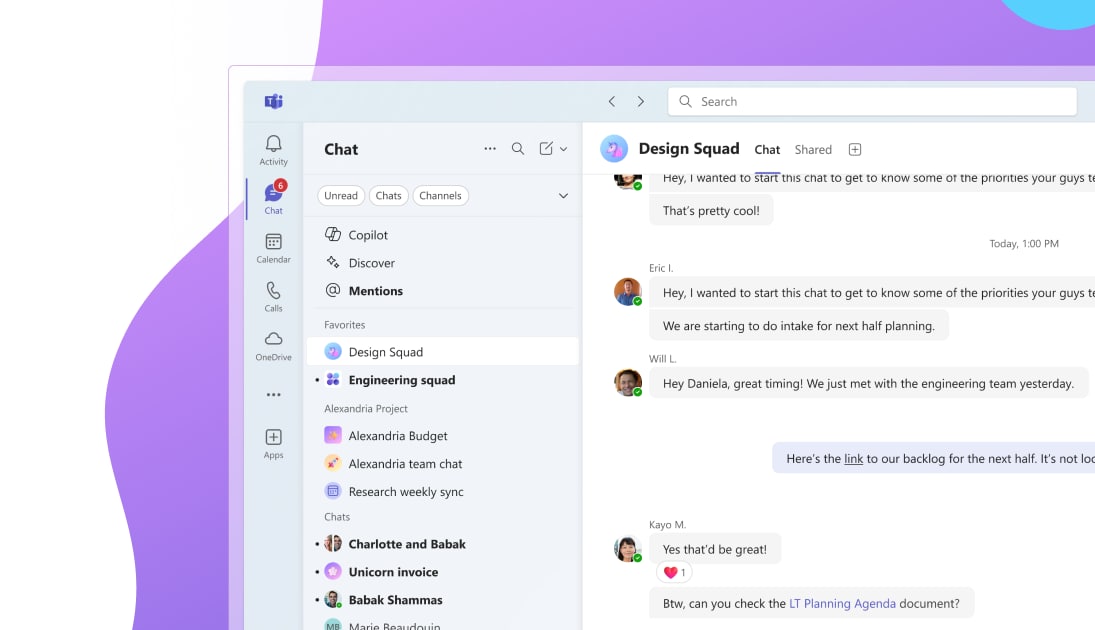
Microsoft Teams doesn’t replace OneDrive or SharePoint. It sits on top of both, and knowing which one is working underneath matters more than most people realize.
When you share a file in a private Teams chat, that file is stored in your OneDrive. It’s personal, tied to your account, and the other person in the chat gets access through a standard share link. When you upload or share a file inside a Teams channel, that file goes straight into the SharePoint document library behind that channel’s associated Team Site.
This distinction has real consequences. I’ve seen teams lose access to important files because the person who originally shared them in a chat left the company, taking their OneDrive access with them. If that same file had been posted in a channel, it would have lived in SharePoint and stayed accessible indefinitely.
A practical rule of thumb: if a file matters to the team long-term, share it in a channel, not a chat. The underlying storage location, SharePoint vs OneDrive, determines whether it persists.
Teams also surfaces SharePoint document libraries directly in the Files tab of each channel, so your team doesn’t need to navigate to SharePoint manually. They get the structure and governance of SharePoint with the convenience of Teams as the interface. That combination is genuinely worth leaning into rather than ignoring.
For broader collaboration and productivity, you might also find value in pairing Teams with other tools. If you’re comparing messaging and file-sharing platforms, our roundup of the best secure messaging apps covers some alternatives worth knowing about.
What IT Admins and Power Users Need to Know
If you’re managing a team of more than a handful of people or administering Microsoft 365 for an organization, there are a few things that separate a well-structured SharePoint setup from a chaotic one.
Metadata vs. Folders
Most people default to folders because folders feel familiar. In SharePoint, that habit will eventually work against you. Metadata is almost always superior to folders for large document libraries.
Here’s the practical difference. A folder structure forces a file into one location: /Marketing/Campaigns/2025/Q1/. If someone in Finance also needs that file, you’re either duplicating it or sending them a link and hoping they find it again. With metadata, the same file can be tagged with Department: Marketing, Year: 2025, Quarter: Q1, and anyone can filter for it from their own view without the file needing to live in multiple places.
Custom views in SharePoint let each team see the same library filtered exactly how they need it. A project manager might filter by Status. A finance team member might filter by Department. The underlying files are the same. The experience feels tailored. I’ve found this makes a noticeable difference once a library gets above a few hundred documents.
Governance and Security
SharePoint gives IT administrators fine-grained control over what happens to documents over time. A few worth understanding:
Version history keeps a full record of every change to a file. You can configure how many versions to retain. For regulated industries, this isn’t optional.
Retention policies let you define rules like “keep this document for seven years, then delete it automatically.” This is handled at the Site or library level, not file-by-file. Combined with sensitivity labels, you can ensure confidential documents are classified, protected, and eventually disposed of without relying on someone to remember.
Sensitivity labels from Microsoft Purview can be applied to files in SharePoint, restricting who can open, copy, or forward them, even if the file is downloaded.
OneDrive supports some of these features too, but the governance story for organizational data clearly belongs in SharePoint. If your company has any compliance obligations, files subject to those obligations should not be living in personal OneDrive accounts.
The 300,000-Item Sync Limit
This is the kind of detail that rarely matters until it suddenly matters a lot.
SharePoint document libraries sync to your desktop via the OneDrive client, but Microsoft recommends keeping your total synced item count under 300,000. There’s no hard cutoff at that number, but performance degrades noticeably beyond it.
Sync times slow down, the client gets stuck on “processing changes” for extended periods, and general sluggishness sets in. For most teams, this threshold is nowhere near relevant.
For organizations running large asset libraries or archival repositories, it’s a number worth keeping in mind. If you’re approaching that scale, using SharePoint directly in the browser is the more reliable option than desktop sync.
Conclusion: Choosing Your Strategy
SharePoint vs OneDrive isn’t really a choice between two competing tools. It’s a question of having a strategy for using both at the right time.
For individuals and small businesses: OneDrive is where you live day-to-day. Use it for everything you’re still working on. Create a small SharePoint Site for team resources, shared templates, and documents that need to outlast any single employee. Even a two-person team benefits from having one SharePoint library that holds the things that matter to the business.
For larger organizations: The stakes are higher. Files scattered across personal OneDrive accounts create governance risk, make audits painful, and put institutional knowledge at the mercy of employee turnover. A SharePoint-first approach for all team-level content, with OneDrive reserved strictly for personal drafts and in-progress work, is the structure worth building toward.
Neither tool is complicated to use. The complexity comes from not having a policy, not from the platforms themselves. Decide where drafts live, decide when a file becomes an organizational asset, and make that transition a habit. That’s really all the strategy you need.
For related reading on file sharing and cloud storage, our guide to the best file sharing apps covers tools worth knowing if you need to collaborate with people outside your Microsoft 365 environment.
Frequently Asked Questions
Does SharePoint replace OneDrive?
No. They’re designed for different purposes and work best in combination. OneDrive handles personal, in-progress work. SharePoint handles shared, long-term, organizational content. Microsoft intends you to use both.
Can I sync SharePoint to my desktop like OneDrive?
Yes. The OneDrive client handles SharePoint sync as well. In any SharePoint document library, click “Sync,” and the library will appear in File Explorer or Finder alongside your personal OneDrive. The experience is nearly identical, with the caveat that SharePoint sync is limited to 300,000 items per library.
What happens to my OneDrive files if I leave the company?
Your account is typically disabled when you leave, and your OneDrive enters a grace period, usually 30 days, during which your IT administrator can access and reassign your files. After that period, the files are deleted. If important work lives only in your OneDrive, coordinate with your manager before leaving, so nothing is lost.
Is SharePoint included in Microsoft 365?
SharePoint is included in most Microsoft 365 business plans, including Microsoft 365 Business Basic, Business Standard, and all enterprise plans. OneDrive is also included across all of these. You’re not paying extra for either.
Can external users access SharePoint?
Yes, with the right permissions. SharePoint supports external sharing with people outside your organization, and administrators can control exactly how permissive or restrictive that sharing is. By default, external sharing requires a Microsoft account or a one-time passcode for verification.
Comments